Official Mobile Apps Download Directory
Click to download official Android applications directly from the Google Play Store.
NMMS App
National Mobile Monitoring System
Used by Mates & GRS for individual 1st worker attendance and 2nd worksite group photo verification.
com.nic.nmms
Aadhaar FaceRD
UIDAI Facial Recognition Service
Mandatory system service for NMMS App to perform individual worker face authentication.
in.gov.uidai.facerd
Area Officer App
Field Visit & Quality Inspection
Designed for BDOs, POs, and State Inspectors to record geotagged field inspection reports.
com.nic.areaofficer_app
Janmanrega App
ISRO Bhuvan Asset Tracker
Allows workers & citizens to view geotagged village assets on ISRO Bhuvan GIS maps.
NIC / MoRD / ISRO
Step-by-Step NMMS Attendance Guide
Complete visual guide for Mates & GRS to mark e-musterroll attendance accurately.
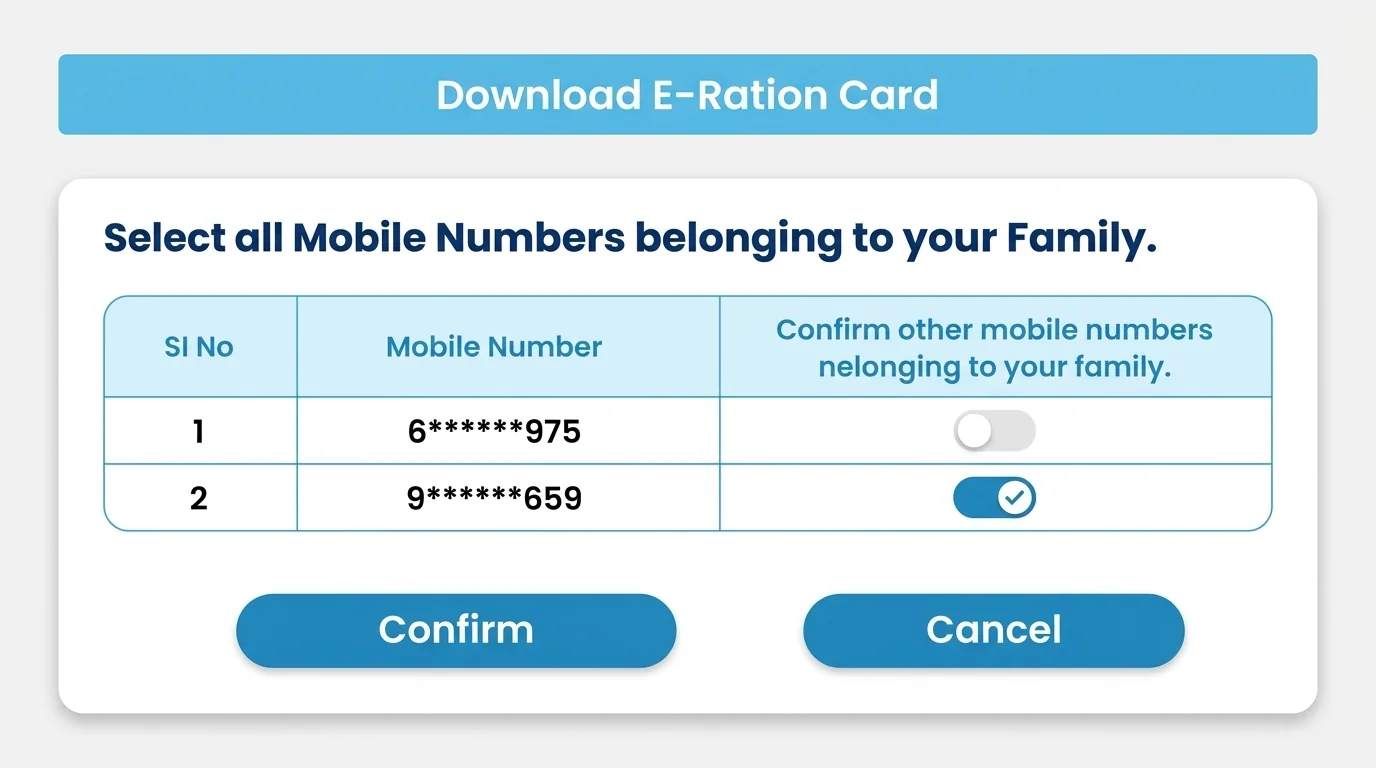
Step 1: Open NMMS App & Log In
Open the official NMMS App (NIC), enter your assigned User ID and Password, and tap 'Login'. Always use official Play Store apps.
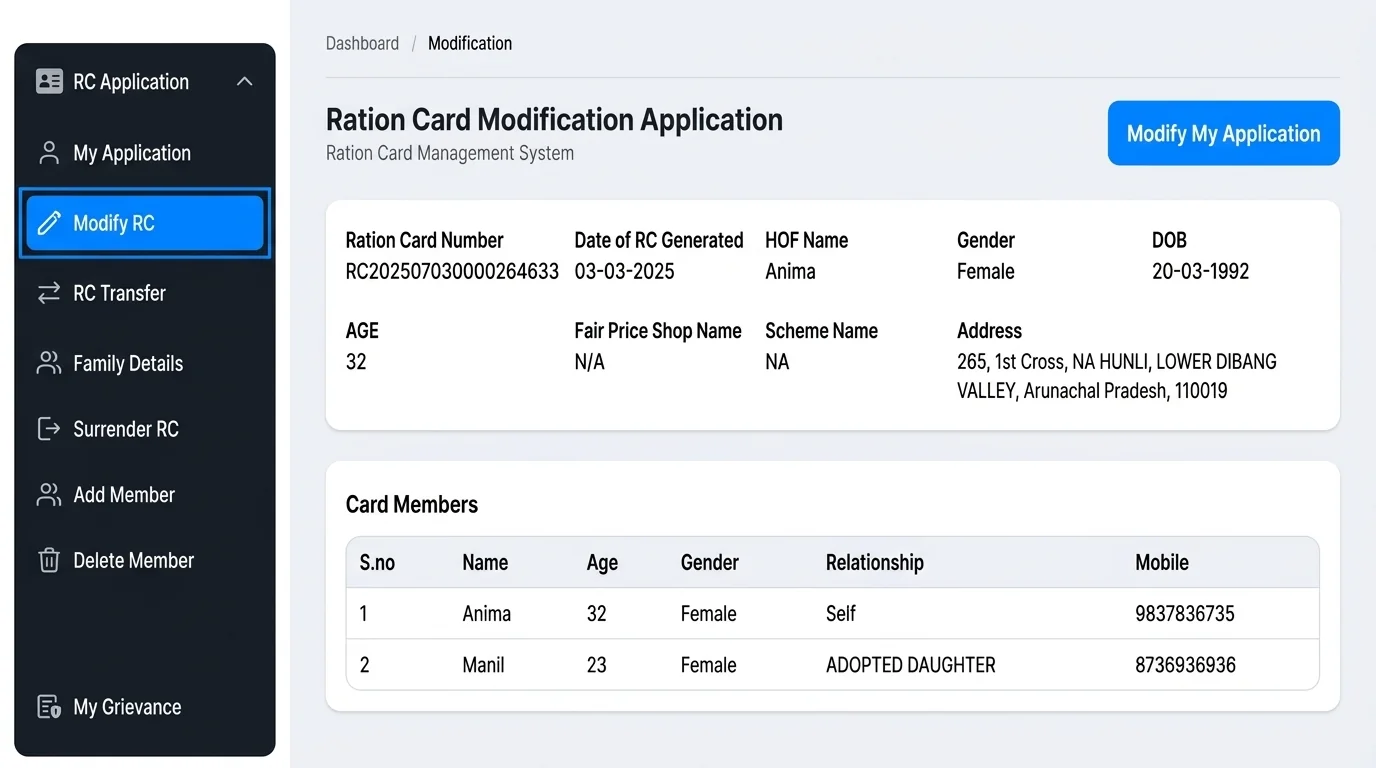
Step 2: Tap the Top-Left Menu (☰)
On the home dashboard, tap the top-left hamburger menu icon (☰) to access the master data sync options.
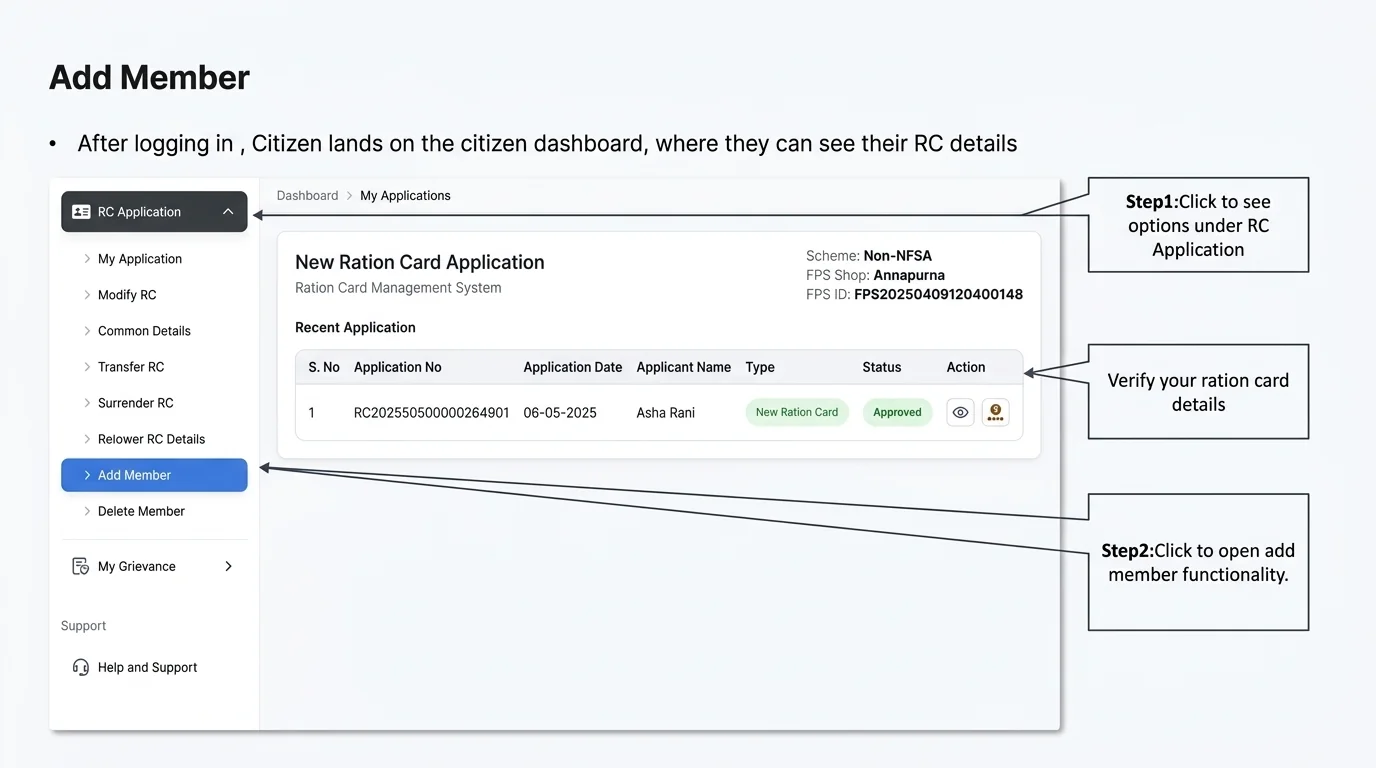
Step 3: Download Master Roll Issued Data
Select 'Download Master' → tap 'Download Musterroll Issued Data' to fetch active worksite e-muster rolls issued for your Panchayat.
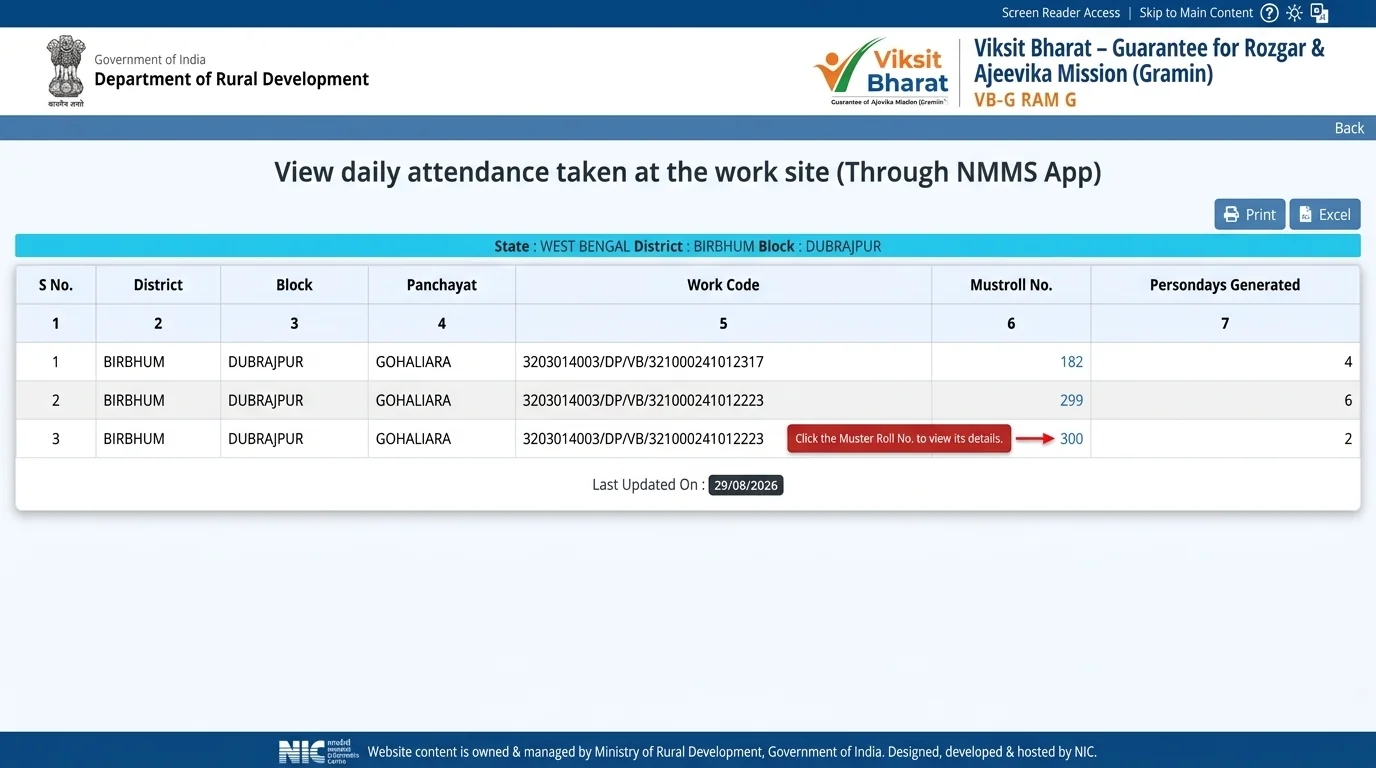
Step 4: Select 'Capture Attendance'
Return to the main home dashboard and tap the 'Capture Attendance' card to start recording daily worker presence.
Step 5: Tap 'Capture Musterroll Attendance'
Inside the Capture Attendance menu, select 'Capture Musterroll Attendance' for morning worker attendance recording.
Step 6: Select Work Code & Muster Roll Number
Choose your geotagged Work Code from the dropdown and select the active Musterroll Number issued for the worksite.
Step 7: Mark Individual Worker Attendance & Scan Face
Mark present/absent for each worker. Tap 'Capture Attendance 📷' for every present worker to perform individual face authentication via Aadhaar FaceRD.
Step 8: Upload Attendance to Central Server
After saving, return to home and tap 'Upload Attendance'. Your task is ONLY complete when you see the 'Successful' confirmation popup message.
Step 9: Capture 2nd Photo After 4 Hours (Group Photo)
At least 4 hours after morning session, go to 'Capture Attendance' → tap 'Capture Afternoon Photo' to take a group photo of all workers present at the worksite.
Critical NMMS App Rules & Troubleshooting Tips
Avoid unauthorized APKs and resolve common field camera or sync glitches.
Always use the official NMMS app (com.nic.nmms) and Aadhaar FaceRD (in.gov.uidai.facerd) from Google Play Store. Using unauthorized APKs can lead to account suspension or wage payment holds.
If the camera/capture button is missing or grayed out, switch your internet connection (e.g. Wi-Fi to SIM card data or dual-SIM switch) or restart the NMMS application.
If face verification fails on first attempt, ensure proper daylight on the worker's face and hold camera steady. Repeated attempts usually succeed quickly.
Attendance must be recorded twice daily. The second session must be captured at least 4 hours after the morning session using 'Capture Afternoon Photo' for a group photo.
Important: After saving attendance, always go back to main menu and tap 'Upload Attendance'. Your task is complete only when the 'Successful' popup message is displayed!
NREGA & VBGRAMG Mobile Apps Feature Comparison
Understand user roles, access requirements, and photo guidelines.
| App Name | Developer | Target Users | Primary Function | Attendance & Photo Rules |
|---|---|---|---|---|
| NMMS App | NIC / MoRD | Mates, GRS, Sachiv | Daily worksite attendance | 1st Individual + 2nd Group Photo |
| Aadhaar FaceRD | UIDAI | NMMS System Service | Facial recognition RD service | Live Face Auth |
| Area Officer App | NIC / MoRD | BDO, PO, District Inspectors | Field inspection & audits | Geotagged Worksite Photos |
| Janmanrega App | NIC / ISRO NRSC | Citizens, Workers | GIS map asset tracking | View Geotagged Assets |
Frequently Asked Questions (FAQs)
Common solutions for NMMS app errors, face authentication, and photo guidelines.
What is the 1st photo and 2nd photo rule in NREGA NMMS App?
In NMMS App, the 1st photo in the morning records individual worker attendance and face authentication. The 2nd photo, taken mandatory 4 hours later, is a group photograph of all present workers together at the active worksite.
What if the 'Capture Attendance' option is not visible below the worker's name?
Ensure worker's eKYC is completed and latest Master Data is downloaded. A green tick should appear next to the worker's name; otherwise, redo the eKYC.
How to fix 'Face-Mismatch' or 'Capture worker photo again' errors?
Ensure proper daylight on the worker's face, adjust camera position, remove glasses, mask or ghoonghat, hold phone in portrait mode, and retry 2–3 times.
What is the K-100 error in NMMS App and how to resolve it?
The K-100 error occurs when a worker's live photo does not match their official Aadhaar Card photo. The worker must update their latest photo at an Aadhaar Seva Kendra.
When should the worker be asked to blink during face scan?
Ask the worker to blink their eyes when the circular boundary around their face on the screen turns green.
Can attendance be captured if there is no mobile network at the worksite?
Yes. Attendance can be captured offline at remote worksites and uploaded later using 'Upload Attendance' once cellular network coverage is available.
Can workers wear glasses, masks, or ghoonghat while taking photos?
No. The face must be completely visible without any obstruction. Attendance photos should always be captured holding the device in portrait mode.
What are the minimum device specifications required for the NMMS App?
Android OS version 7.0 or above with a minimum of 2GB free internal storage is required.
What should be done if downloading master data takes too long?
As per AMC guidelines, a maximum of 40 workers should be mapped to one Mate. Following SoP rules ensures smooth and fast master data downloads.
What to do if a Server Error is displayed in the app?
Retry uploading after some time. If the error persists, try switching mobile networks or inform NIC technical support through the official group.
VBGRAMG Login Portal
State-wise GP, PO, FTO Signatory & District administrative logins.
VBGRAMG MIS Reports
View R1 to R35 worker, muster roll & payment reports online.
Job Card Search
Lookup job card details by worker name or muster roll number.